OneDrive
file manager
Personal Microsoft accounts and Microsoft 365 OneDrive — browse, upload, and copy files to any other cloud or server from a dual-pane desktop client.
OneDrive sync is not cross-cloud file management
Microsoft's OneDrive client keeps files in sync with one local folder. Moving OneDrive → S3, browsing two OneDrive accounts side-by-side, or bulk-selecting files for SFTP upload isn't what the sync client is built for. An onedrive file manager needs OAuth, visual folders, and a second pane for the destination — whether that is Dropbox, R2, or a remote server. Office workers and IT teams still juggle browser tabs and export scripts when they need cross-cloud delivery or nightly backup off Microsoft's silo.
Sign in with Microsoft — manage in dual pane
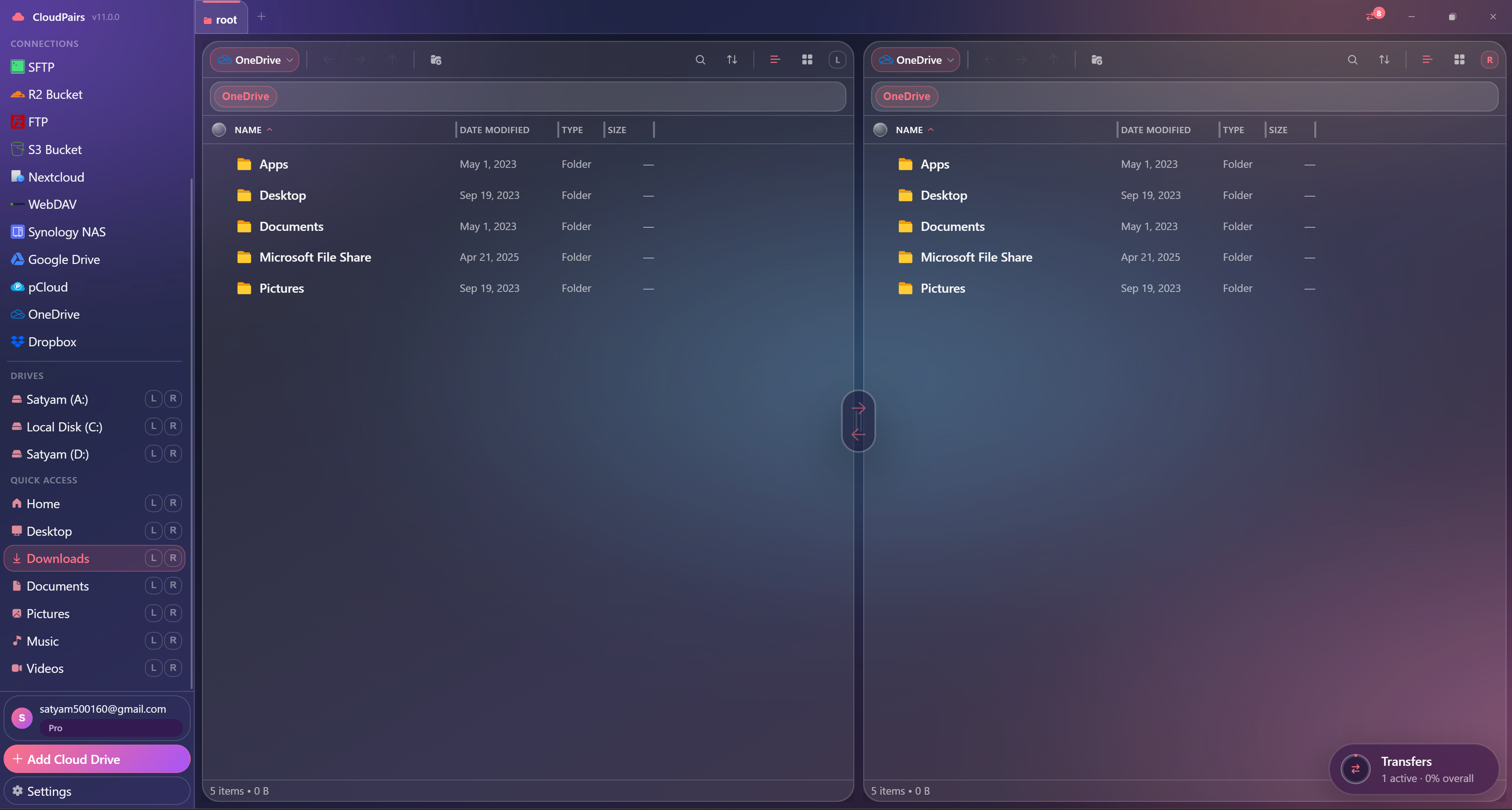
CloudPairs uses Microsoft OAuth with PKCE — no client secret on your machine. Works with personal @outlook.com and Microsoft 365 work/school accounts on Windows 10/11 and macOS 13+. Browse OneDrive in either pane and copy to S3, Dropbox, local disk, or SFTP. Folder uploads and recursive copy run through the queue with retry. Tokens live in your OS keychain. Start with a 14-day Pro trial, no credit card, then $12/mo for automation and unlimited connections.
Why CloudPairs for Microsoft OneDrive
Microsoft OAuth
Personal and Microsoft 365 accounts — sign in once via secure browser flow.
Dual-pane OneDrive ↔ S3 / Drive / SFTP
Mix OneDrive with any other connected protocol in left and right panes.
Folder upload and recursive copy
Queue entire directory trees with per-file progress and automatic retry.
SharePoint / business library browsing
Access OneDrive libraries via Microsoft Graph for work and school tenants.
Cloud-to-cloud without local staging
Copy OneDrive → S3 or R2 directly through the transfer queue.
Secure token storage
OAuth tokens encrypted in Windows Credential Manager or macOS Keychain.
Who uses CloudPairs with Microsoft OneDrive
Office backup
Nightly automation: OneDrive Documents → S3 bucket with skip-existing rules.
Personal migration
Move personal OneDrive → Google Drive via dual pane without export zips.
IT ops handoff
Copy SharePoint-synced folders to an SFTP server for external processing.
Dual-pane Microsoft OneDrive browsing
How to connect Microsoft OneDrive
Five steps to your first transfer. Full guide in our docs.
Download CloudPairs and create an account — free 14-day Pro trial, no credit card.
Connections → + Add connection → choose Microsoft OneDrive.
Click Sign in with Microsoft — pick personal or work/school account in browser.
Complete OAuth PKCE authorization → CloudPairs returns to the app automatically.
Test connection → Save → browse OneDrive in dual-pane mode and queue transfers.
Read the full Microsoft OneDrive connection guide →
See also: Docs guide
CloudPairs vs alternatives
| Alternative | Limitation |
|---|---|
| OneDrive sync client | Mirror only — one local folder, no multi-cloud pane or S3/SFTP hub. |
| onedrive.live.com | Browser UI — no queue, no SFTP/S3 in the same desktop session. |
| Cyberduck | Limited OneDrive UX versus a dedicated multi-cloud dual-pane client. |
Microsoft OneDrive questions
Related cloud tools
Ready to manage Microsoft OneDrive?
Free 14-day Pro trial — no credit card. Then $12/mo for automation and unlimited connections.
Free forever · Pro $29 one-time · 2 years updates & support