Browse Dropbox
like a pro
Connect via OAuth and manage Dropbox alongside S3, Google Drive, SFTP, or local folders — dual-pane copy, queue, and automation in one app.
Dropbox desktop app syncs — it doesn't manage
Dropbox's official client mirrors folders. It won't show Dropbox next to an S3 bucket, queue a selective folder copy to SFTP, or let you pick individual files across two clouds. A dropbox desktop file manager should behave like a browser, not a sync mirror — dual panes, multi-select, and a destination pane for R2 or OneDrive. Creative teams and freelancers still export, re-upload, or script cross-cloud hops because the sync client was never designed for selective transfers or hybrid workflows at scale.
CloudPairs = visual Dropbox client + multi-cloud hub
OAuth into Dropbox once on Windows 10/11 or macOS 13+. Tokens stay in your OS keychain via OAuth 2.0 PKCE — never on CloudPairs servers. Open Dropbox in the left pane, Amazon S3 in the right, and drag to copy. Or use the transfer queue for large folder jobs with retry and bandwidth limits. Pro adds scheduled Dropbox → S3 backup automation. Try free for 14 days with no credit card, then $12/mo for unlimited connections and cron syncs.
Why CloudPairs for Dropbox
Dropbox OAuth 2.0
Sign in through your browser — no Dropbox password stored in the app.
Dual-pane Dropbox ↔ any protocol
Pair Dropbox with S3, Drive, SFTP, local disks, or another Dropbox account.
Selective folder transfer
Copy chosen folders — not a full-account sync mirror of your entire Dropbox.
Transfer queue with retry
Progress, speed readout, and one-click retry on failed files.
Scheduled Dropbox → S3 backup
Cron or interval automation mirrors folders to a backup bucket (Pro).
OS keychain token storage
OAuth tokens encrypted in Windows Credential Manager or macOS Keychain.
Who uses CloudPairs with Dropbox
Creative archive
Move finished projects from Dropbox to cold S3 storage without local staging.
Cross-client delivery
Copy deliverables Dropbox → client OneDrive using two panes in one session.
Selective backup
Weekly automation of /Work folder → Cloudflare R2 with skip-existing rules.
Dual-pane Dropbox browsing
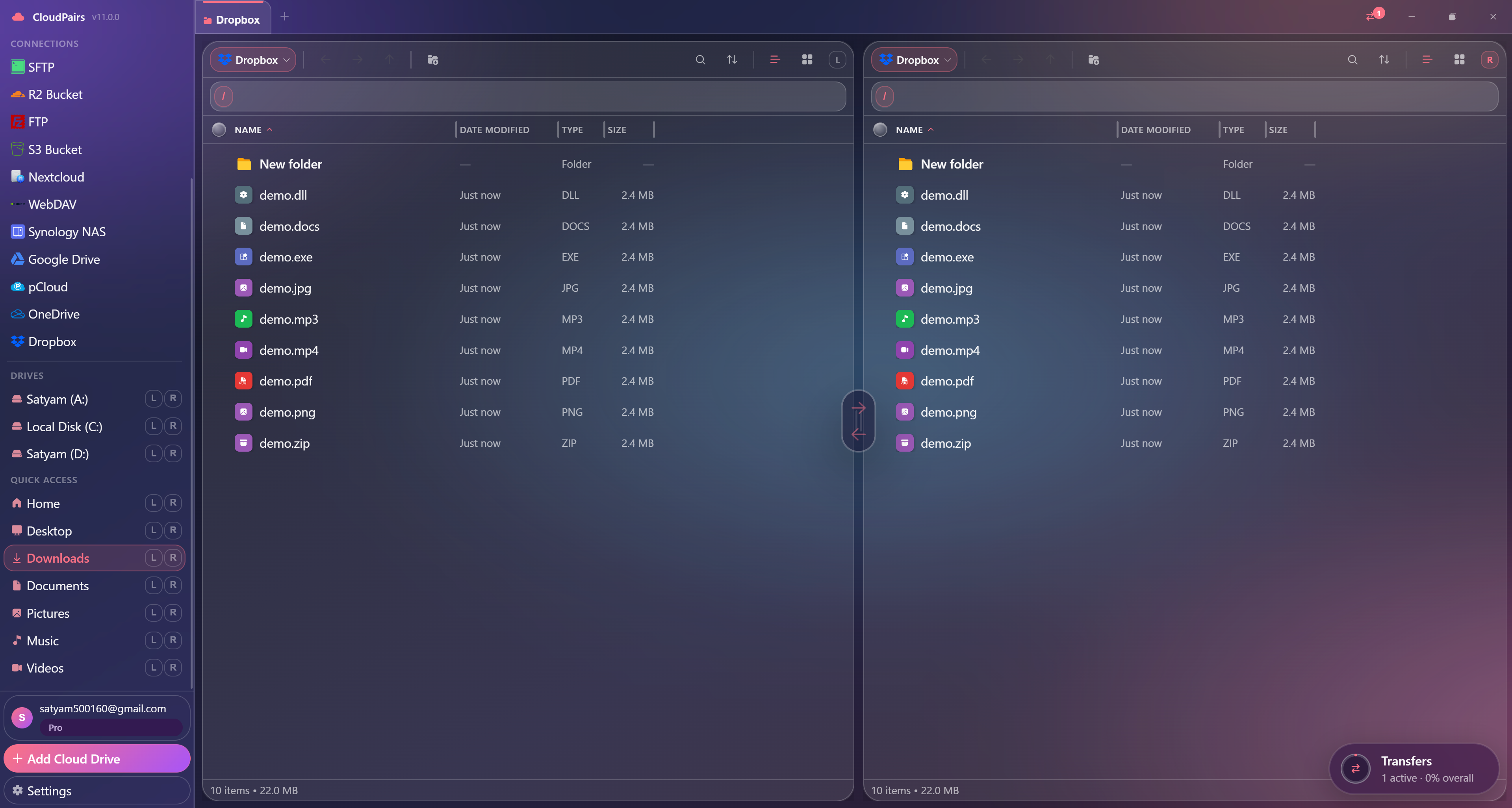
How to connect Dropbox
Five steps to your first transfer. Full guide in our docs.
Download CloudPairs for Windows or macOS and sign up — 14-day Pro trial, no credit card.
Connections → + Add connection → choose Dropbox.
Click Authorize with Dropbox — complete sign-in in your browser.
Grant requested permissions → return to CloudPairs automatically.
Test connection → Save → browse Dropbox in dual-pane mode and start transferring.
Read the full Dropbox connection guide →
See also: Docs guide
CloudPairs vs alternatives
| Alternative | Limitation |
|---|---|
| Dropbox desktop app | Sync only — single root folder, no S3 pane, no selective queue transfers. |
| dropbox.com | Browser uploads only — no dual-pane cross-cloud, no SFTP/S3 in same tool. |
| Mountain Duck | Mount-based licensing per volume — limited queue UX and no unified automation. |
Dropbox questions
Related cloud tools
Ready to manage Dropbox?
Free 14-day Pro trial — no credit card. Then $12/mo for automation and unlimited connections.
Free forever · Pro $29 one-time · 2 years updates & support