Synology
from your desktop
Browse your Synology NAS via File Station API — no extra packages to install on DSM. Dual-pane copy to S3, SFTP, Google Drive, or local storage.
DSM File Station is browser-only for serious file work
Synology's File Station works in a browser tab — but bulk renames, cross-NAS copies, NAS → S3 backups, and side-by-side folder comparison need a desktop client. Synology Drive sync mirrors one folder; it won't open your NAS next to an S3 bucket. A synology file manager should use File Station API out of the box on any DSM 6.2+ NAS, with a transfer queue and automation for offsite backups without extra packages.
File Station API — built into every Synology NAS
CloudPairs connects with hostname/IP, port (5000 HTTP / 5001 HTTPS), username, and password on Windows 10/11 or macOS 13+. Uses Synology File Station API — enabled by default, no package install required. Browse shared folders visually, queue transfers, and automate NAS → cloud backups. Credentials encrypted in your OS keychain. Free 14-day Pro trial, no credit card, then $12/mo for automation and unlimited connections.
Why CloudPairs for Synology NAS
File Station API (DSM 6.2+)
Works on default DSM setup — no extra Synology package installation required.
Dual-pane Synology ↔ S3 / SFTP / local
NAS in one pane, S3, R2, WebDAV, or local disk in the other — drag to copy.
Shared folder browsing
Breadcrumbs, search, and multi-select across volumes your account can access.
Transfer queue for NAS jobs
Large folder uploads and downloads with per-file progress and retry.
Scheduled NAS → S3/R2 backup
Cron automation with skip-existing rules mirrors shared folders offsite (Pro).
OS keychain credential storage
DSM username and password encrypted on-device — never sent to CloudPairs servers.
Who uses CloudPairs with Synology NAS
NAS offsite backup
Nightly automation copies a Synology shared folder to an S3 or R2 bucket.
Media workflow
Ingest to NAS in the left pane, deliver finished assets to an R2 CDN bucket on the right.
Home lab hybrid
Browse Synology NAS and an SFTP server in one dual-pane session with shared queue.
Dual-pane Synology NAS browsing
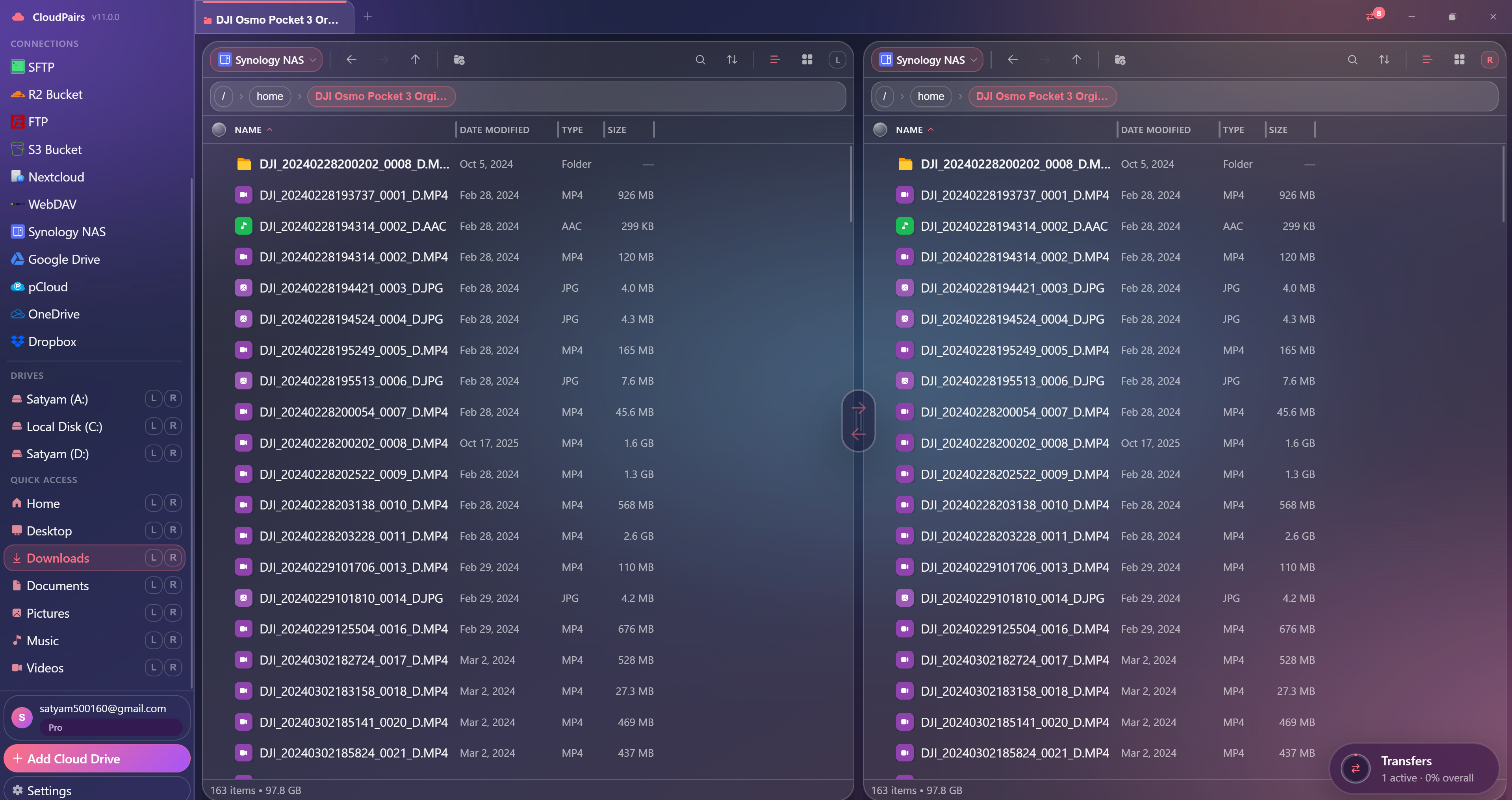
How to connect Synology NAS
Five steps to your first transfer. Full guide in our docs.
Ensure File Station is enabled in DSM (default on most Synology setups).
Open CloudPairs → Connections → + Add connection → choose Synology.
Enter NAS hostname or IP, port 5001 (HTTPS) or 5000 (HTTP), DSM username and password.
Test connection — CloudPairs lists shared folders via the File Station API.
Save → browse your NAS in dual-pane mode and queue your first transfer.
Read the full Synology NAS connection guide →
See also: Docs guide
CloudPairs vs alternatives
| Alternative | Limitation |
|---|---|
| DSM File Station (browser) | Tab-only UX — no dual-pane, no cloud transfer queue, weak bulk operations. |
| Synology Drive sync | Single-folder mirror — not a multi-cloud browser with S3/SFTP panes. |
| SMB mount in Explorer | No S3 pane, weak queue UX, permission and disconnect quirks on macOS. |
Synology NAS questions
Related cloud tools
Ready to manage Synology NAS?
Free 14-day Pro trial — no credit card. Then $12/mo for automation and unlimited connections.
Free forever · Pro $29 one-time · 2 years updates & support