Local drive transfers
paired with every connection
Browse Desktop, Downloads, Documents, Pictures, Music, Videos, home folders, and mounted Windows drives beside the cloud or server destination you choose.
Local-to-cloud moves should not need temporary tools
Many cloud workflows still start or end on a PC. Without a dual-pane file manager, users bounce between Explorer, browser upload dialogs, sync folders, and terminal commands.
Make local folders one side of every workflow
CloudPairs treats local folders and drives as first-class sources and destinations. Open a local folder in one pane and any supported provider in the other, then copy, drag, queue, audit, or automate.
Why CloudPairs for Local Drive
Local Drive in either pane
Open Local Drive beside a local folder or another supported connection, then compare paths before moving files.
Queue-based transfers
Uploads, downloads, folders, and cross-pane copies run through a visible queue with progress, speed, retry, and failure states.
Bulk file operations
Use multi-select, drag and drop, context menus, rename, delete, refresh, new folder, and copy-to-opposite-pane actions where the provider supports them.
Automation-ready
Create scheduled sync tasks with interval, daily, or cron timing, conflict rules, file filters, run history, and retry controls.
Usage visibility
Review transfer history in the audit log and monitor CPU, RAM, network I/O, and transfer activity from the performance dashboard.
Local credential storage
Secrets are stored through the operating system credential store where supported; provider credentials are not needed by the public website to run desktop transfers.
Plan the Local Drive workflow
Follow the provider-specific connection steps and prerequisites.
A-to-Z docs Feature documentationReview the CloudPairs docs hub for providers, transfers, automation, and settings.
Feature guide Dual-pane explorerSee how this workflow connects with the broader CloudPairs feature set.
Feature guide Transfer queueSee how this workflow connects with the broader CloudPairs feature set.
Feature guide Security modelSee how this workflow connects with the broader CloudPairs feature set.
Who uses CloudPairs with Local Drive
Upload from Downloads or Desktop
Move selected local files to S3, R2, Dropbox, OneDrive, pCloud, WebDAV, Synology, SFTP, or FTP/FTPS.
Download cloud archives
Choose a local download folder and pull selected files from cloud storage with queue visibility.
External drive staging
Use mounted drives as staging areas for backup, migration, or recovery workflows.
Security notes for Local Drive
Delete confirmation
Enable delete confirmation in Settings before running cleanup-heavy local workflows.
Use trusted folders
Be careful with system folders, external drives, and synced folders that may have their own background processes.
Clear local data if needed
Settings includes controls to clear audit history, saved connections, and app data.
Dual-pane Local Drive browsing
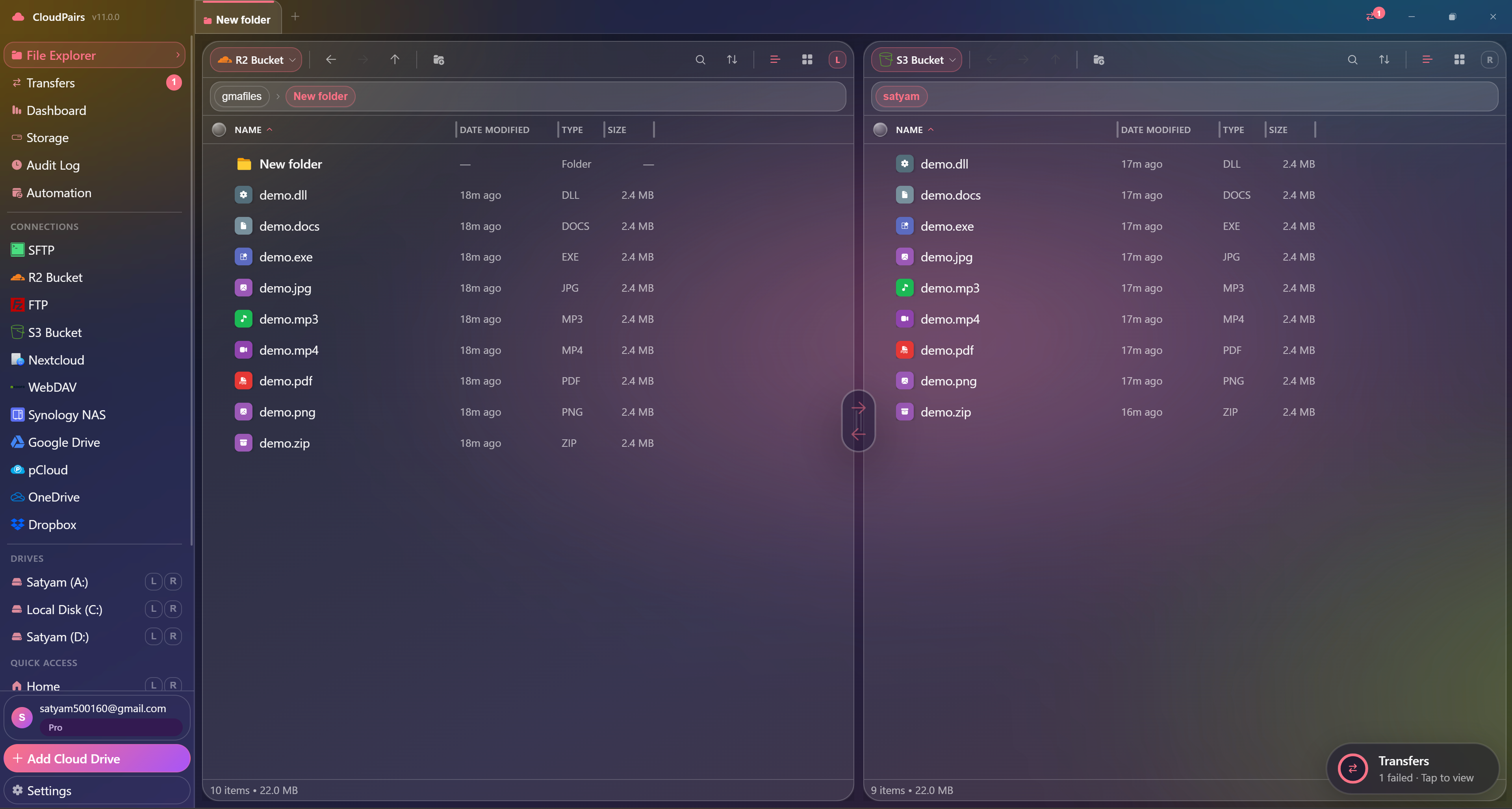
How to connect Local Drive
Five steps to your first transfer. Full guide in our docs.
Open CloudPairs and choose a Quick Access folder or local drive from the sidebar.
Open a cloud or server connection in the opposite pane.
Select files or folders locally or remotely.
Copy, drag and drop, or use the context menu to transfer through the queue.
Adjust the default download folder and file-list preferences in Settings when needed.
Read the full Local Drive connection guide →
See also: Docs guide
Common Local Drive fixes
Folder is not visible
Use refresh, check permissions, and confirm the drive is mounted in Windows.
Download location is wrong
Update the default download folder in Settings or choose the destination pane explicitly.
File locked by another app
Close the app using the file, then retry the failed queue item.
CloudPairs vs alternatives
| Alternative | Limitation |
|---|---|
| Browser dashboards | Good for account administration, but slow for side-by-side file comparison and repeated transfer work. |
| Command-line tools | Powerful for scripted jobs, but harder to audit visually and less approachable for everyday file operations. |
| Single-provider sync apps | Useful for mirroring one account, but not designed for selective transfers across several providers. |
Local Drive questions
Related cloud tools
Ready to manage Local Drive?
Download the Windows app free, then upgrade to Pro for $29 one-time when your workflow needs more.
Free forever · Pro $29 one-time · 2 years updates & support